
 |  |  |  |  |  |  |  |  |

 |
 |
 |
 |
 |
 |
 |
 |
 |
 |
 |
 |
 |
 |
 |
 |
 |

|
Setting Up Email Accounts in Outlook
|
|
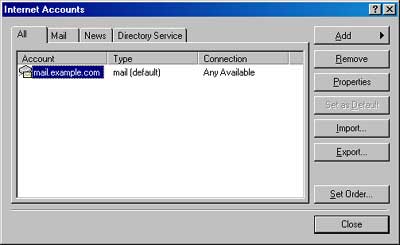
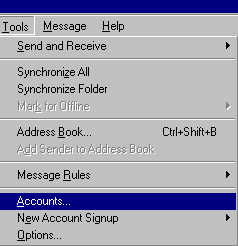
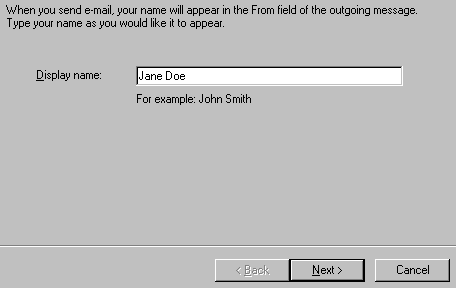
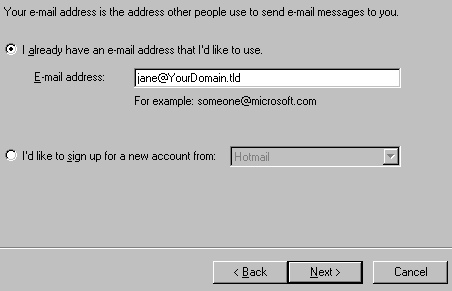
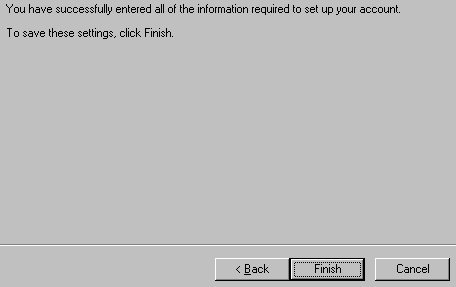
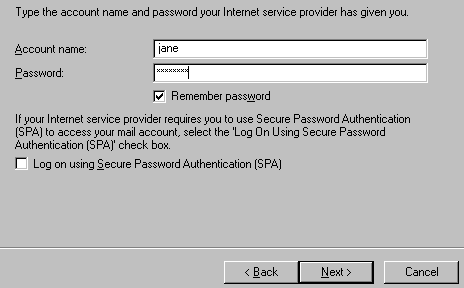
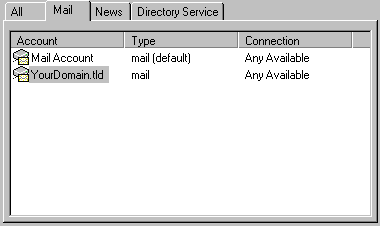
Setting Up Additional Accounts in Outlook & Outlook Express This tutorial may be useful when setting up additional accounts in Outlook Express. For New accounts follow these steps:
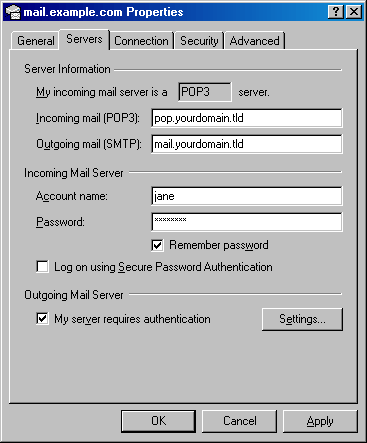
Tip: Replace "yourdomain.tld" with your actual domain name such as example.com.
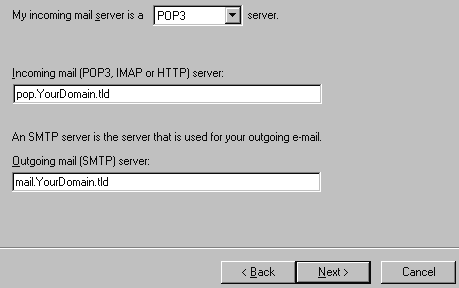
NOTE: You must use pop.yourdomain.tld for the Incoming mail (POP3) server, and mail.yourdomain.tld for outgoing mail smtp server. Tip: Replace "yourdomain.tld" with your actual domain name such as your-domain.com.
|
|
|
| ORDER NOW! There's absolutely NO RISK! We are so sure that you will be pleased with our service that we're backing it with an unconditional 30-Day Money Back Guarantee!
|

|
|
Hosting Plan Hosting Features Sales FAQ Control Panel Demo Why Us Hosting Facility
Testimonials Sign Up Support Contact Us AUP Terms Privacy Resources Trade Link
|
|
Copyright © 2003-2004 2ClickHere.com All rights reserved